Connecting the uniFLOW Online enterprise application to Entra ID - SSO
- Log in to the Microsoft Azure portal (https://portal.azure.com) as an administrator.
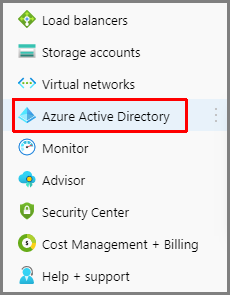
- Select Azure Active Directory from the portal menu.
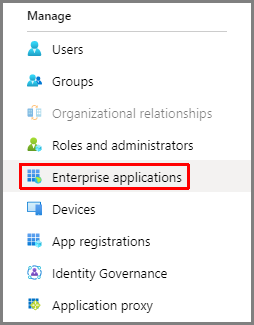
- Select Enterprise applications.
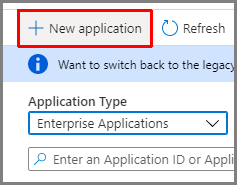
- Click on New application.
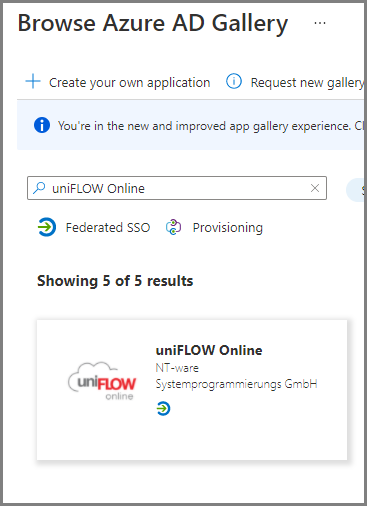
- Type uniFLOW Online in the search field and click on the uniFLOW Online app in the search results.
- Enter a Name that makes it easy to identify the purpose of the application (you can leave it as uniFLOW Online) and click Create (creation might take a minute).
- Under Getting started, select 2. Set up single sign on.
- Select SAML and configure as follows:
- Basic SAML Configuration:
Click on the edit button and configure as follows:
- Identifier (Entity ID): please input your uniFLOW Online tenant URL
- Reply URL: As above
- Sign-on URL: As above
- Click Save.
- User Attributes & Claims:
These can be left as default. These can be left as default; however, it is recommended if user provisioning will be utilized to modify the mapping for the Unique User Identifier (Name ID) claim to map to User.ObjectID and not User.UserPrincipalName. Making a change to this mapping will not impact users that have already logged into uniFLOW Online via this Identity Provider.
? | The nickname claim is being used to store the onPremisesSamAccountName. The nickname claim is used to create the username identity in uniFLOW Online. The onPremisesSamAccountName user attribute only exists for users within Azure AD that have been synchronized from a local Windows Active Directory environment as part of a Microsoft Hybrid Identity configuration. Native Azure AD users do not have this attribute and the mapped claim, therefore, is empty. For more information on Microsoft Hybrid Identity please refer to https://docs.microsoft.com/en-us/azure/active-directory/hybrid/whatis-azure-ad-connect. |
- SAML Signing Certificate:
Copy the App Federation Metadata Url to the clipboard, you will need this in step 22.

- Go to Properties.

- Set User assignment required? Set to No
- Set Visible to users? to No:
This determines if a uniFLOW Online tile will be visible to users within their Office app list. As uniFLOW Online uses a Service provider-initiated login, it makes no sense to show this tile to users as it will not work.
This finishes the app registration in the Microsoft Azure portal.
uniFLOW Online tenant – SSO Configuration
16. Go to Extensions > Identity Providers > Configure Identity Providers
17. Click Add identity provider
18. Display name is what you want the users to see as a login option
19. Provider type: WS-Federation
20. WS-Federation type: Microsoft 365
21. Click Save
22. Enter the Federation Metadata URL:
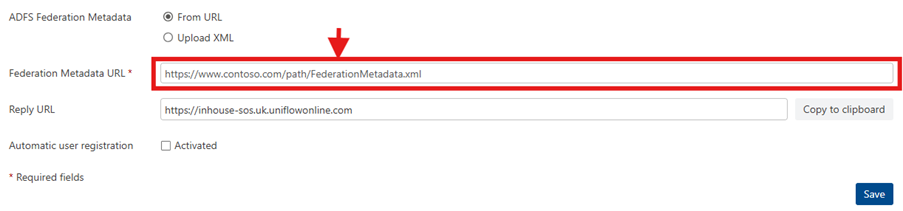
23. Activate Automatic user registration and click Save
Was this article helpful?
That’s Great!
Thank you for your feedback
Sorry! We couldn't be helpful
Thank you for your feedback
Feedback sent
We appreciate your effort and will try to fix the article