Prerequisites:
1. Must be a licensed account
2. Mailbox must be signed into and MFA setup if required.
3. SMTPAUTH must be enabled in 365 Admin Centre > Users > Account > Settings > Email Apps
Note: Token expires in 90 days if not used.
1 – Navigate to ‘settings\registration’ on the printer webpage

2 – From here, select send and then ‘OAuth Microsoft’

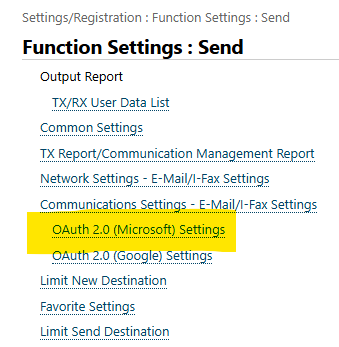
3 - Then select ‘edit’ and tick ONLY the box for ‘Use OAuth 2.0 (Microsoft)’
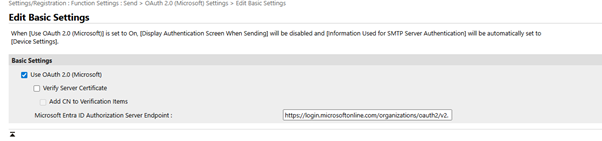
4 – Once ticked, a box will appear to enter ‘Microsoft Entra ID Authorization Server Endpoint’.
Depending on your tenant, the link will differ. If an organisation, it will be ‘organization’ if a smaller business, it could be ‘common’ or ‘consumers’.
For organisations, the link is https://login.microsoftonline.com/organizations/oauth2/v2.0
Input this, then select ‘OK’
5 – After this is done, refresh the page and you should see the below, you will need to select the highlighted link, this will then open in a browser
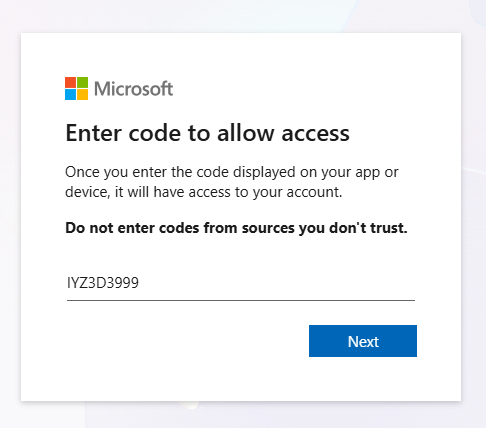
Once accepted, navigate back to the ‘OAuth’ settings on the printer webpage. You want to select the user code to paste into the browser pop up from here:

6 – Pick an account. This will be the email address setup for your SNTP (likely a scanner inbox)
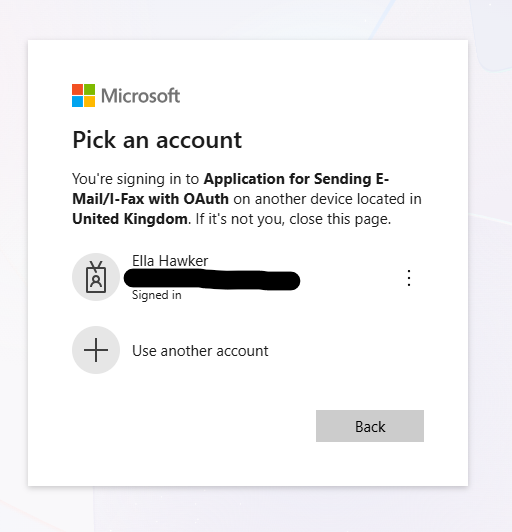
After selecting the inbox, chose ‘continue’ on the next screen as below –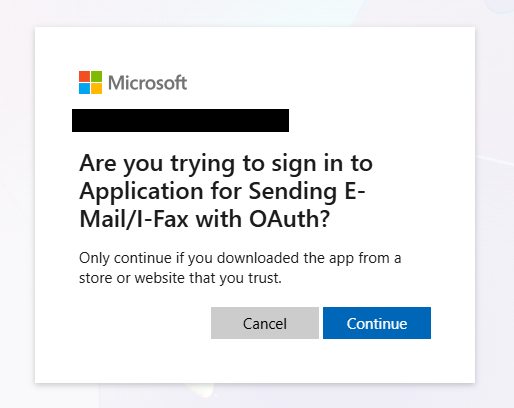
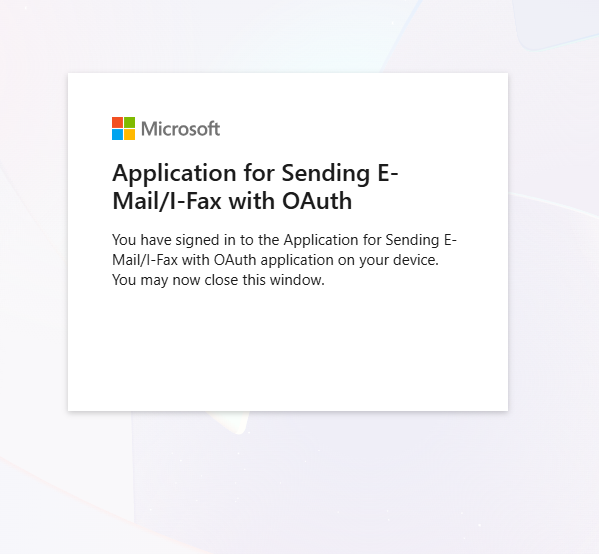
Once completed, you will see the below on screen and can close the browser.
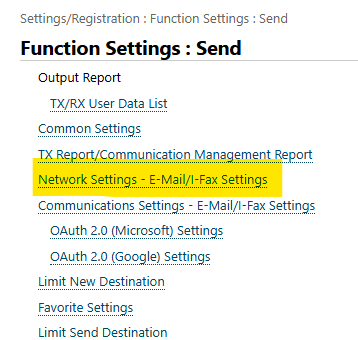
8 – From here, to verify the connection, navigate to ‘Send’ then ‘Network Settings – Email/I-Fax settings’
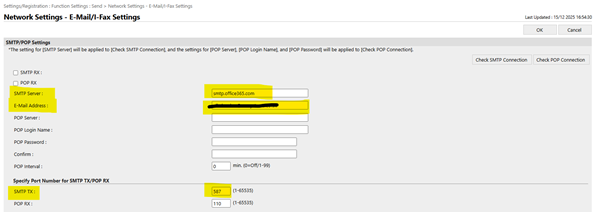
From here, you want to ensure that all settings are setup correctly for OAuth to work.
SMTP Server – this will be smtp.office365.com (Microsoft server authentication)
Email address – this is the email in which you are scanning to / from
Port number (SMTP TX) – 587 (more secure port for OAuth)
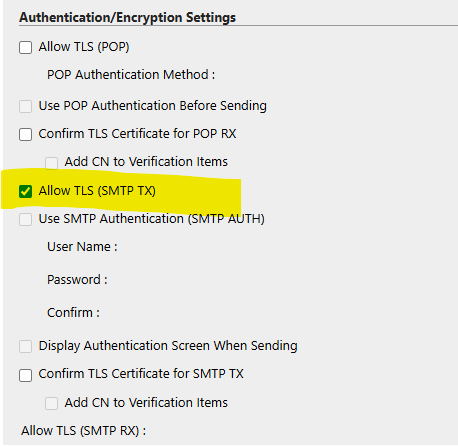
9 – After verifying the above details, the last step is to check the ‘Allow TLS (SMTP TX)’ at the bottom of the page, under the ‘Authentication/Encryption Settings’ box as pictured below
10 – After verifying all above settings, you can now ‘Check SMTP Connection’. This will show whether the changes made have been applied and working.

Was this article helpful?
That’s Great!
Thank you for your feedback
Sorry! We couldn't be helpful
Thank you for your feedback
Feedback sent
We appreciate your effort and will try to fix the article