Method 1 – Via the uniFLOW SmartClient (Secure Print)
If you have the uniFLOW SmartClient installed, you will also have a Secure Printer in your printers list. Printing to this printer is the standard method of printing in uniFLOW Online. Print jobs submitted this way will appear in your secure print queue on the device.
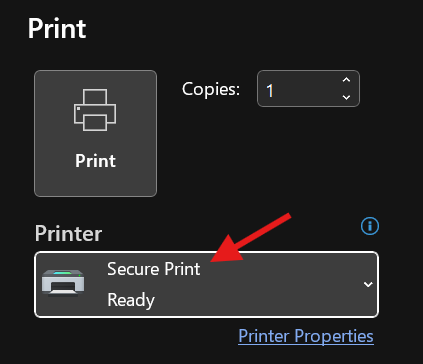
The name of this secure printer will vary depending on your setup. You can check the name of your secure printer by right clicking on the uniFLOW Smart Client icon in your icon tray (Windows) or the top of your screen (Mac) and clicking ‘uniFLOW SmartClient Settings’. The name of the printer will be listed under ‘Monitored Printers’

Method 2 – Drag & Drop via uniFLOW Online
Enter the URL for your uniFLOW Online tenant into a web browser.
How to find my uniFLOW Online URL? – the URL can be found in your uniFLOW Online SmartClient. In your icon tray (Windows) or at the top of your screen (mac) right click on the uniFLOW SmartClient icon and click Open uniFLOW Online:
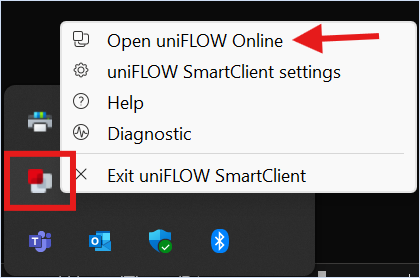
For users working with an older version of the client, you can find the URL by right clicking on the smart client icon and clicking ‘About’
Once logged in head to the Start Printing tab:
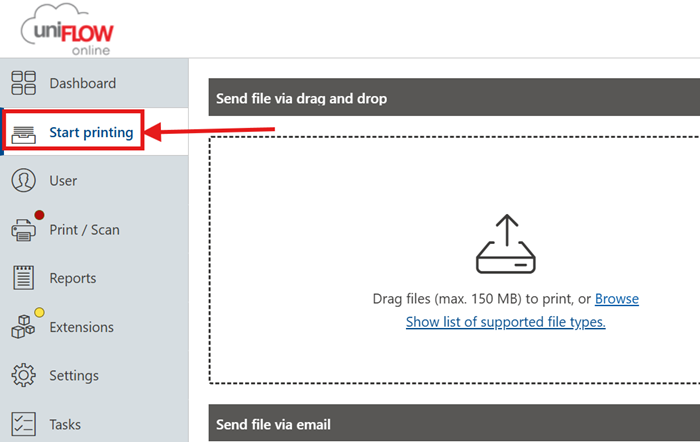
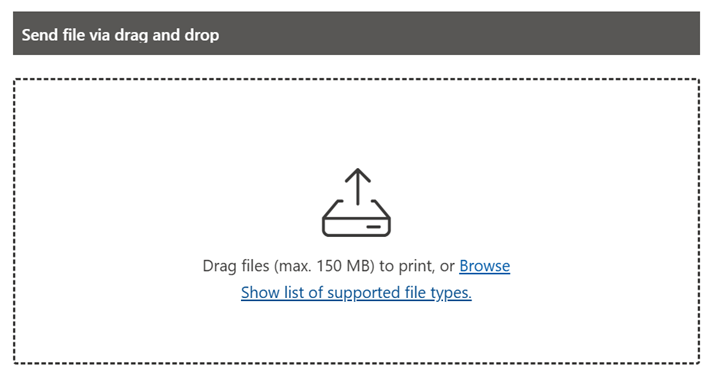
Here you can drag & drop or upload files to be printed:
Method 3 – Via Email
Also, on the Start Printing page, below the drag & drop widget is an email address which you can attach and send your print jobs too. It will strip all the information and just print the attached file:
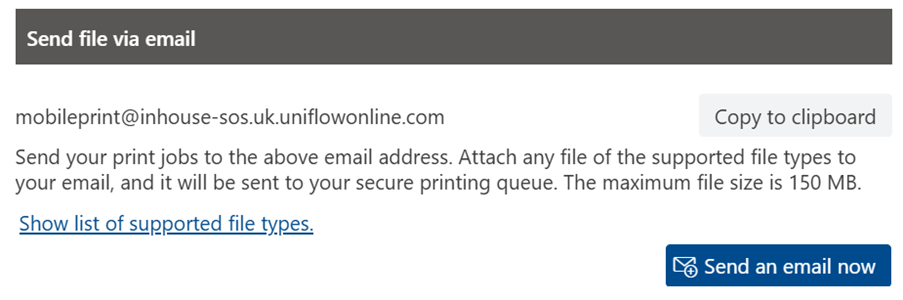
If you are a recognised user with uniFLOW Online, the print jobs will appear in your secure print queue on the device.
If you are a guest user, you will receive a reply email containing a ‘Job Code’. Enter this at the device and you will be able to release your prints.
Method 4 – Via the uniFLOW Online Virtual Printer App (Microsoft Protected Print Mode)
Download the uniFLOW Online Virtual Printer App from the Microsoft Store. Once download enter your uniFLOW Online tenant URL and sign in with your usual method. Print jobs will be submitted to your secure queue.
Method 5 – Via the uniFLOW Online IOS App
Download the uniFLOW Online app from the App Store. You can sign in via a manual login (Entering your uniFLOW Online tenant URL and your usual login method) or sign in via a QR code from your uniFLOW Online Dashboard:

Now you can upload files and photos from your phone directly to your secure print queue.
Was this article helpful?
That’s Great!
Thank you for your feedback
Sorry! We couldn't be helpful
Thank you for your feedback
Feedback sent
We appreciate your effort and will try to fix the article