How to use and install the Uniflow Online Device Remote Access Client
1 – Sign in to your UFO tenant with your relevant credentials
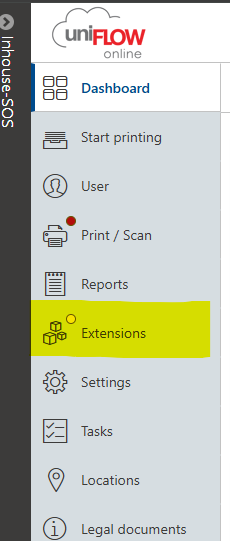
2 - From the dashboard, along the side bar on the left, choose extensions
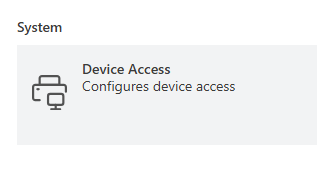
3 – From the extensions list, navigate to System and Device Access
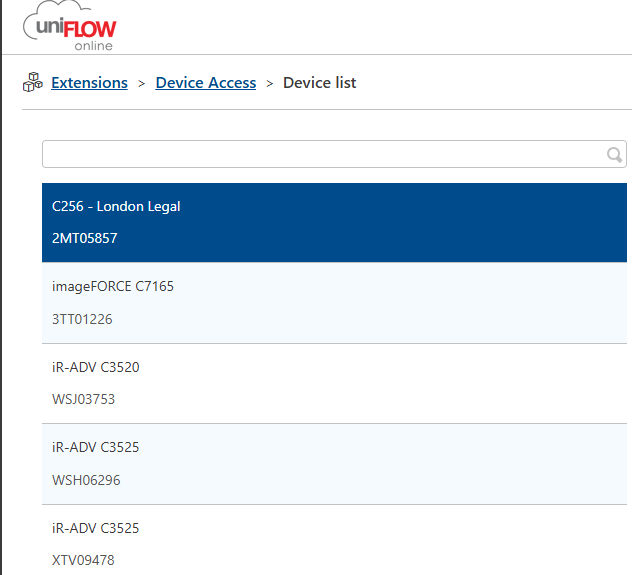
After choosing device access, you will then need to select ‘Device List’
4 - From device list you will be able to see all devices listed in your tenant. Choose the device you want to update from here
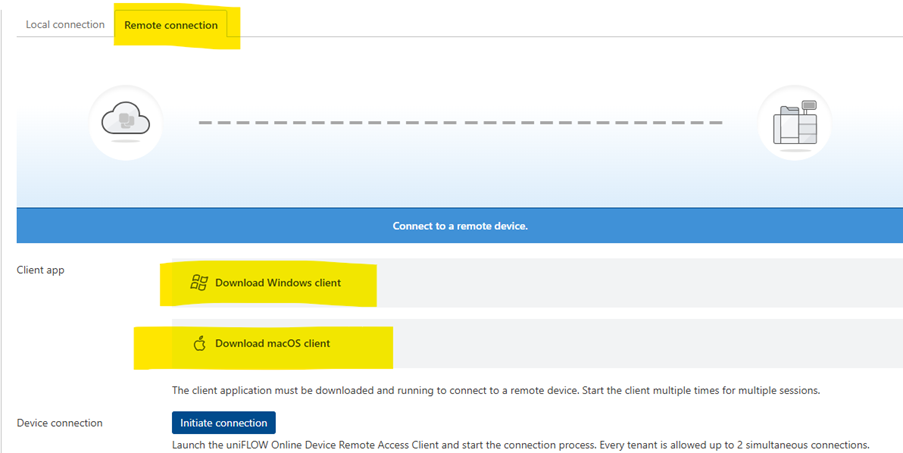
5 – After selecting the device, you want to chose ‘Remote connection’ and then install the relevant client for your device, Mac or Windows.
6 - The download will run and then can be found in your downloads folder. Please follow through with the install wizard as it appears on screen.
7 – Once installed, please chose ‘initiate connection’ from device connection as below, you want to copy the URL to your clipboard from here
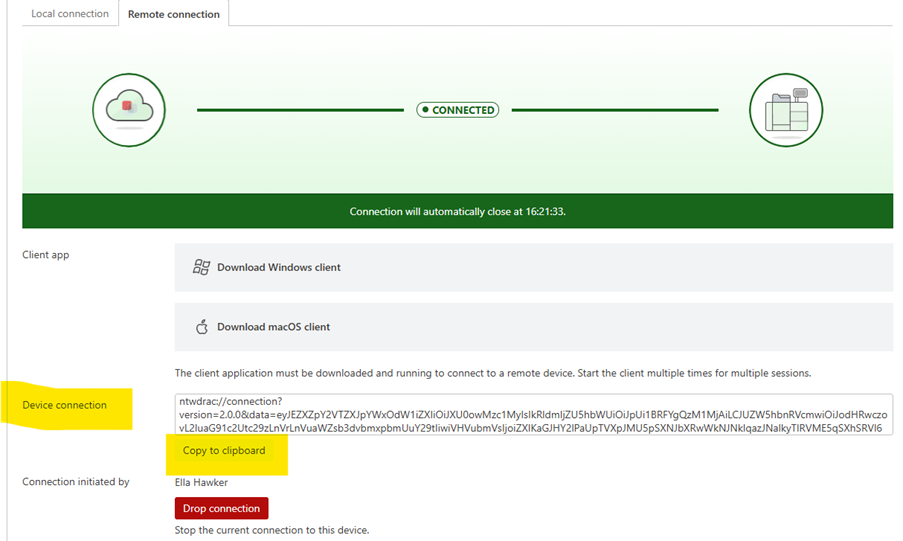
8 – Reopen the UFO Device Remote Access Client, if you copied the URL from clipboard in the previous step, it should auto fill as pictured below
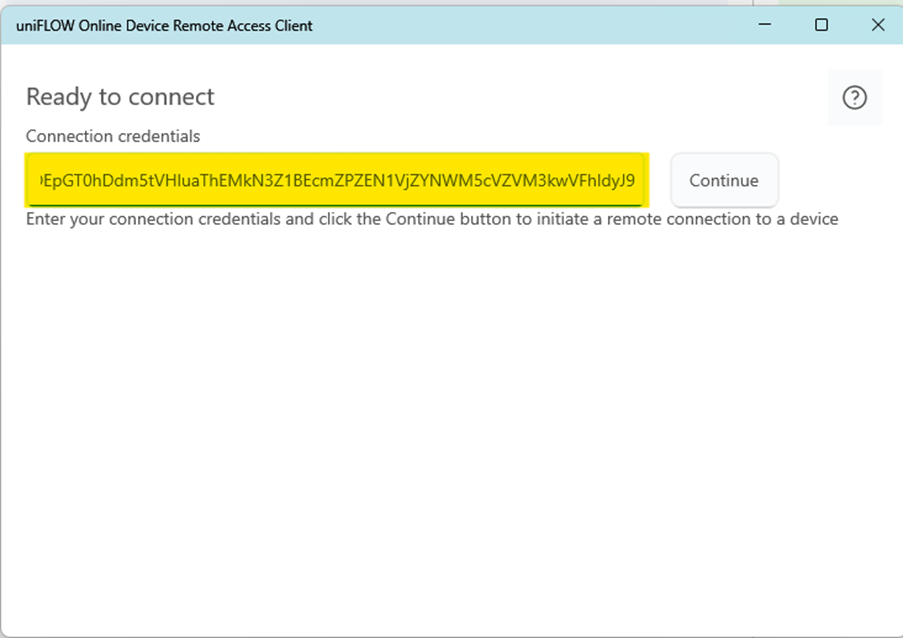
Once the URL is entered, you will be able to continue and will then see this screen
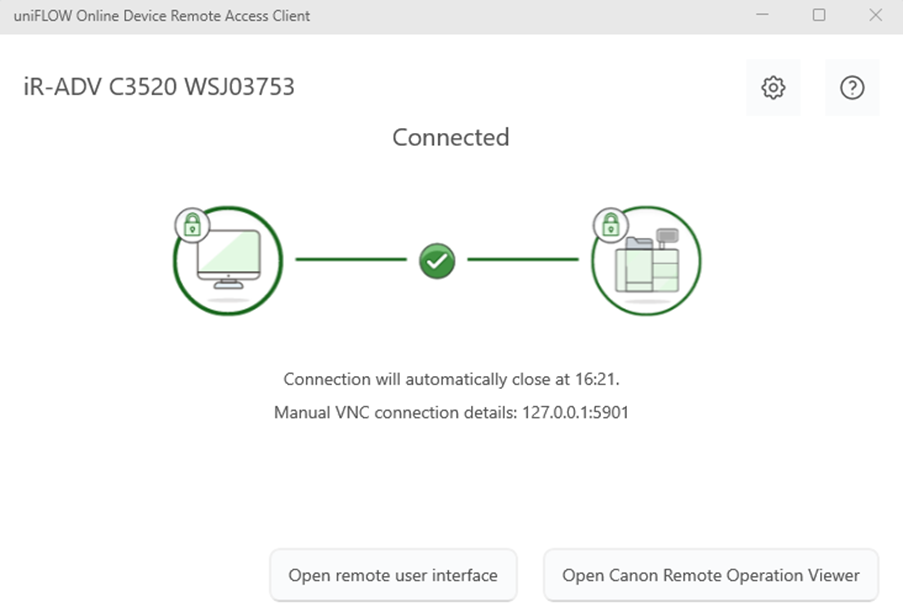
9 – From here, select Open Canon Remote Operation Viewer
(see relevant guide for Canon VNC here -https://softwaresupport.sossystems.co.uk/en/support/solutions/articles/205000048571-how-to-install-and-use-canon-remote-operation-viewer)
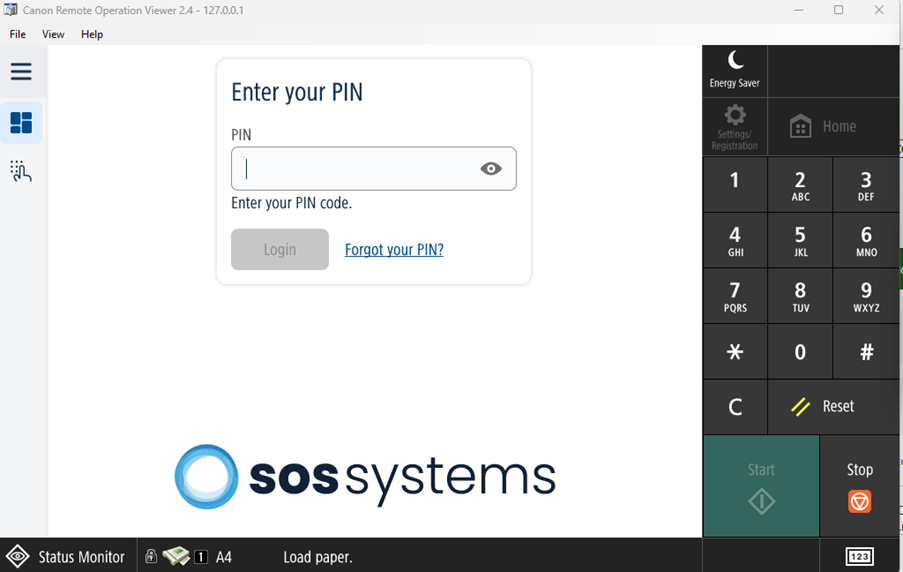
10 - You will now be remotely connected to the chosen device
Was this article helpful?
That’s Great!
Thank you for your feedback
Sorry! We couldn't be helpful
Thank you for your feedback
Feedback sent
We appreciate your effort and will try to fix the article