How to install and use Canon Remote Operation Viewer (VNC)
1 – Navigate to Canon.co.uk, ‘help and support’ and search the specified product / device in the search box.
2 – Under ‘software’ for the device, there will be the Canon VNC.
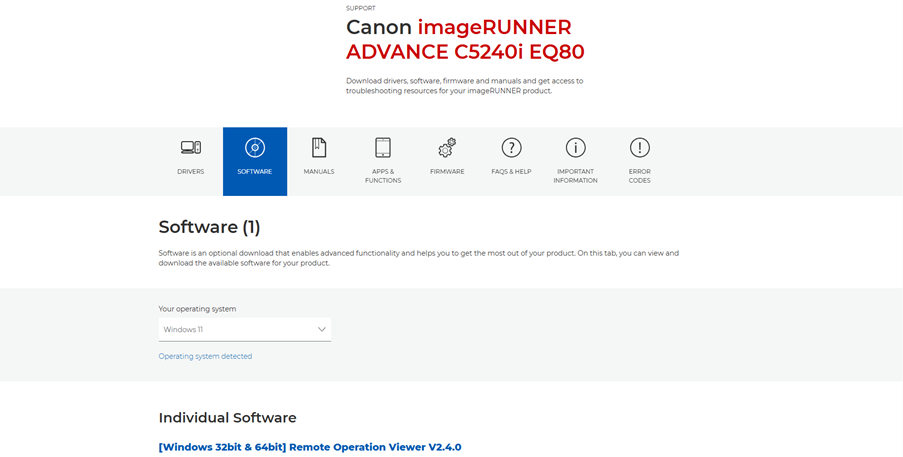
3 – Click the download button
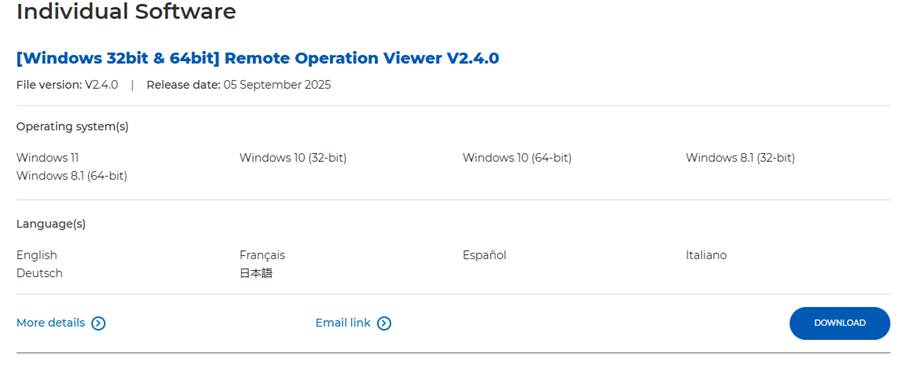
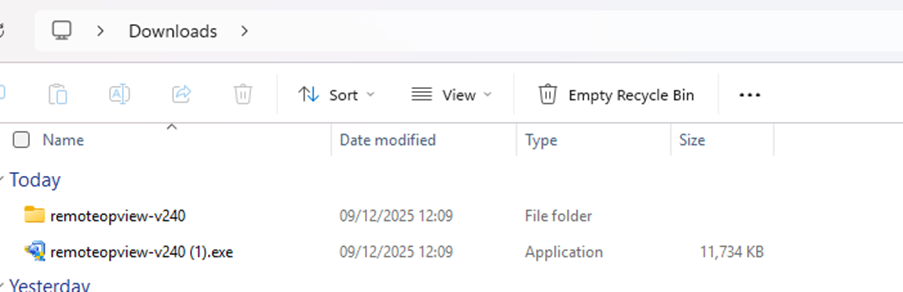
4 – Run the installer, navigate to downloads to find the root folder
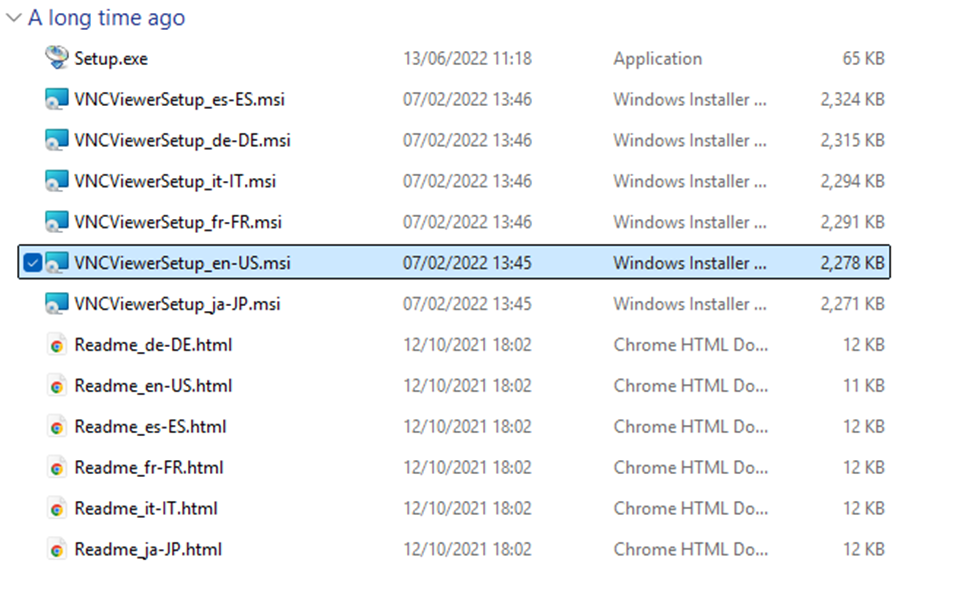
From here, you want to select EN-US
5 – Run through the installer wizard, select I agree and next. Once installed, navigate to windows button or windows start and find Canon Remote Operation Viewer.
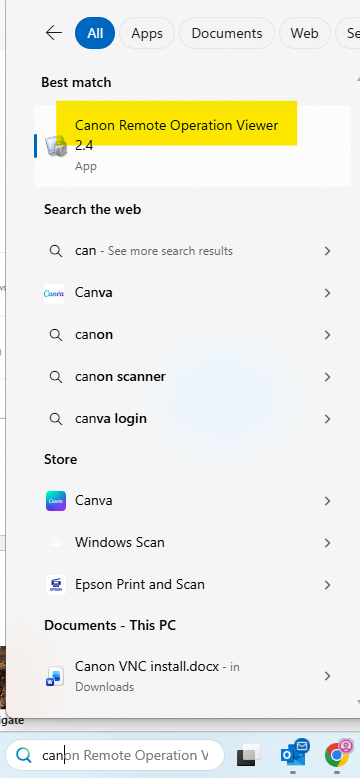
6 - Once opened, you should see an option to input the device IP
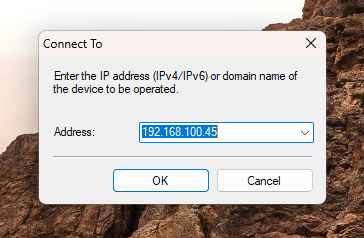
7 – Enter the printer’s IP and then should see the device login screen remotely
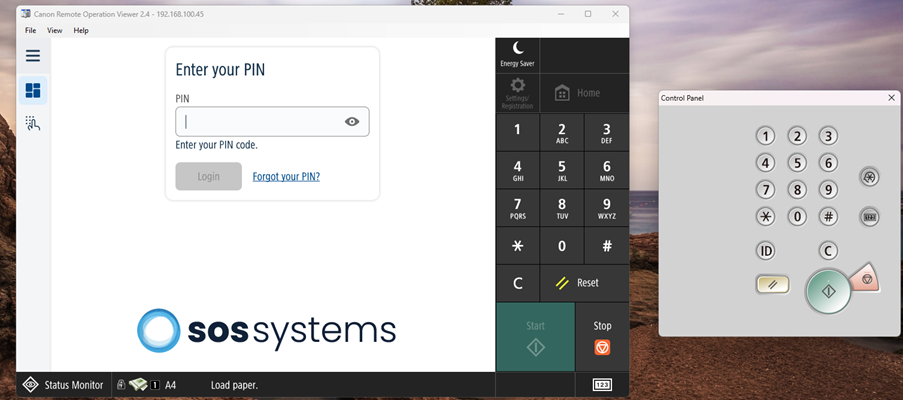
8 – You can use the buttons pictured below to access device settings
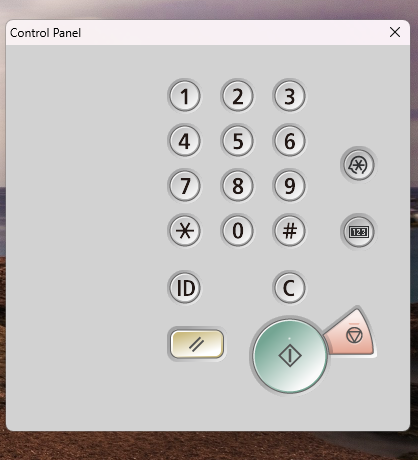
123 – From here you can obtain the IP address, serial number and model, counter report and communications tests can be done here
Yellow button – can perform resets from here
Star – settings and registration
Red button – cancel / status monitor
Was this article helpful?
That’s Great!
Thank you for your feedback
Sorry! We couldn't be helpful
Thank you for your feedback
Feedback sent
We appreciate your effort and will try to fix the article