Step 1: Open Printers
- Click Start
- Go to Settings
- Click Bluetooth & devices
- Click Printers & scanners
- Click on your Canon printer
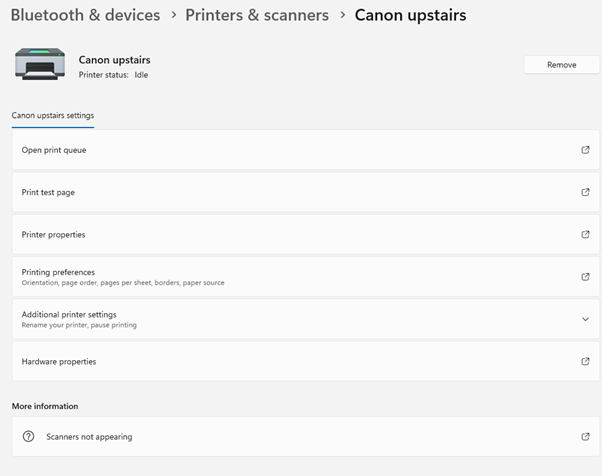
Step 2: Open Printer Properties
- Click Printer properties
Step 3: Go to the Ports Tab
- Click the Ports tab at the top
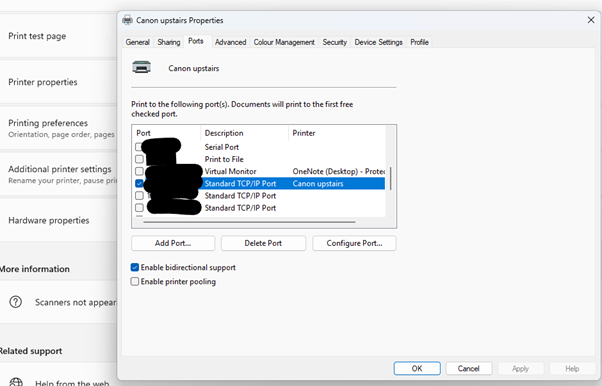
Step 4: Add a New Port
- Select Standard TCP/IP Port
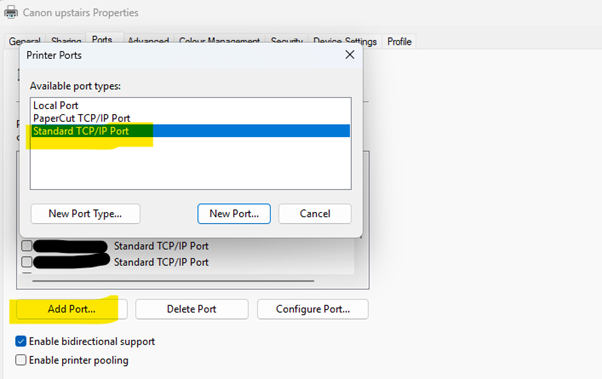
- Click New Port
- Click Next
- Enter the temporary IP address of the printer
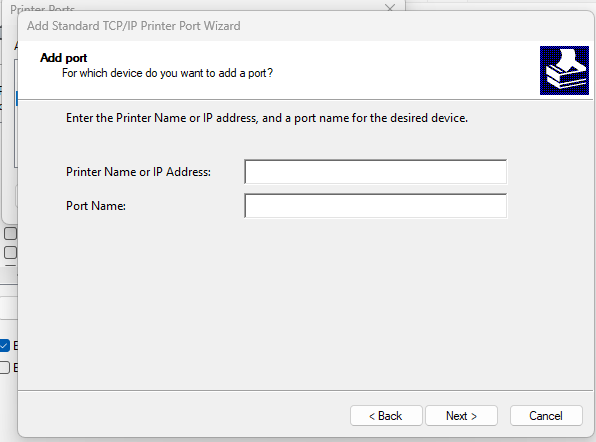
- Click Next, then Finish
- Make sure the new port is selected
- Click Apply, then OK
Was this article helpful?
That’s Great!
Thank you for your feedback
Sorry! We couldn't be helpful
Thank you for your feedback
Feedback sent
We appreciate your effort and will try to fix the article